
Quick start guide
Create and publish your first BundleWise campaign in a few minutes. These steps apply to most campaign types; Next Order Coupon is email-only and skips storefront placement steps.
Step 1, Open the app
From Shopify Admin, go to Apps → BundleWise. The Dashboard opens first.
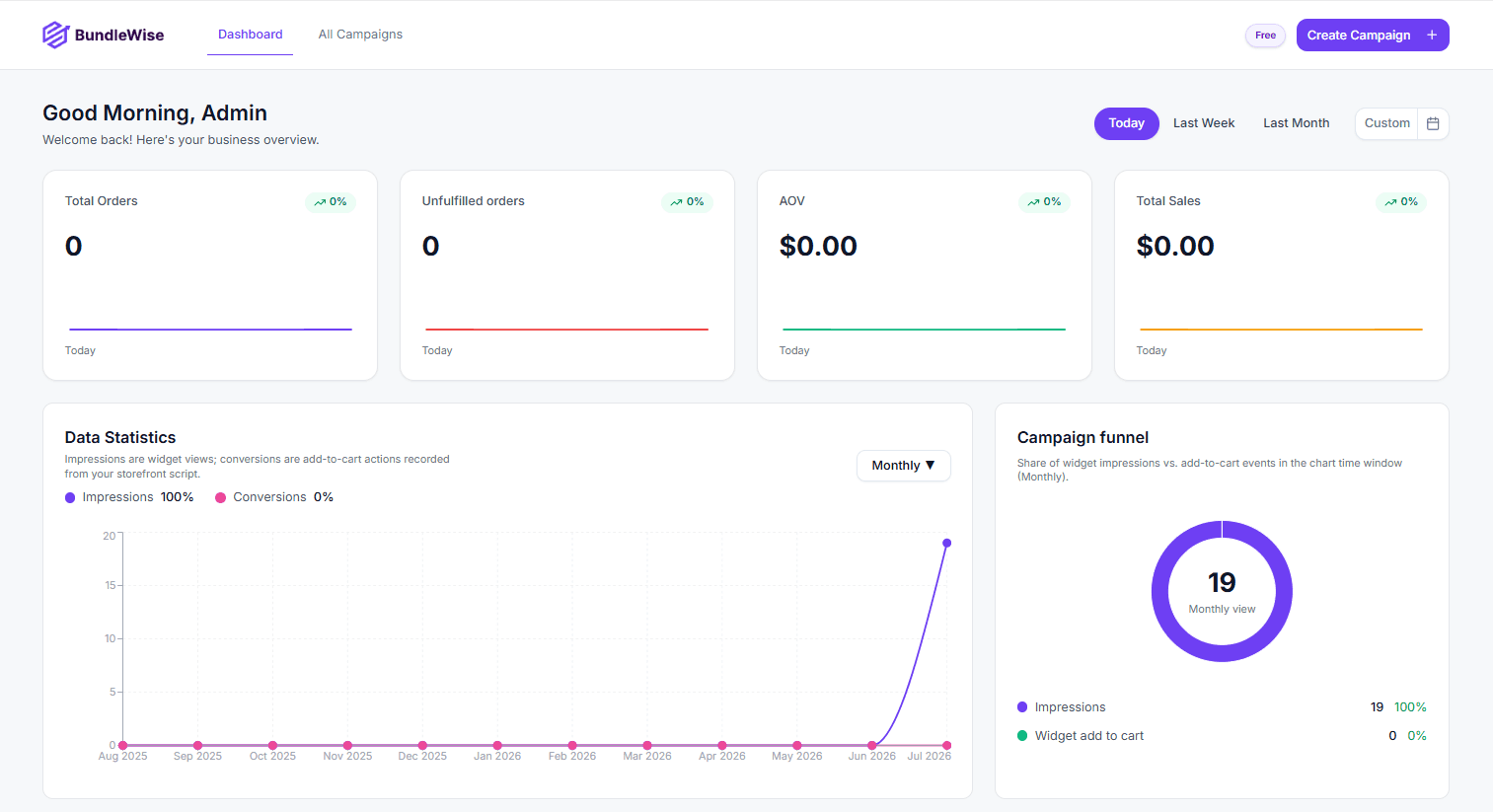
On your first visit, a short product tour may highlight the dashboard, All Campaigns, and Create Campaign.
Step 2, Choose a campaign type
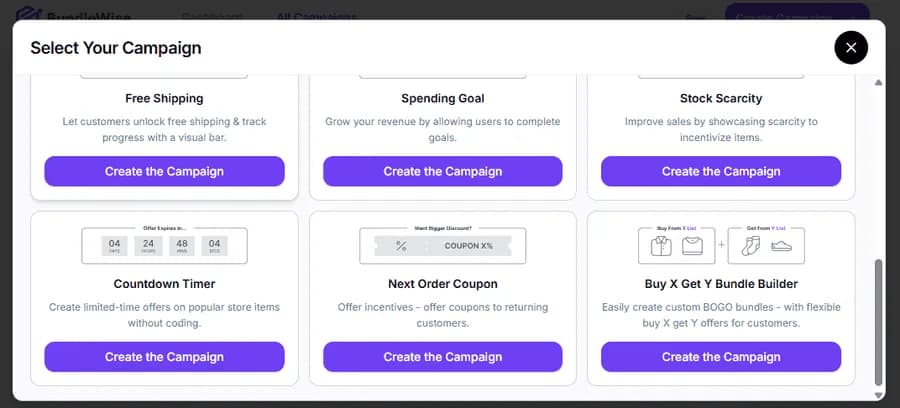
- Click Create Campaign in the top bar.
- In Select Your Campaign, pick a type (for example Normal Discount or Bundle Discount).
- Click Create the Campaign to open the editor with a live preview.
Step 3, Configure the offer
Most editors follow the same order:
- Campaign heading, title and subtitle shown on the widget.
- Trigger products, all products, or pick specific products that activate the offer.
- Offer rules, discount amount, bundle items, tiers, or goals (depends on type).
- Schedule, optional start and end date/time.
- Pages & Display, which pages to show the widget on, display mode (In Page, Pop-up, etc.), and in-page position.
See Campaign settings for details on shared fields.
Step 4, Customize appearance
Use the Preview panel on the right to adjust colors, text, and spacing. Switch page tabs (Product, Cart, etc.) and Desktop / Mobile to check both layouts.
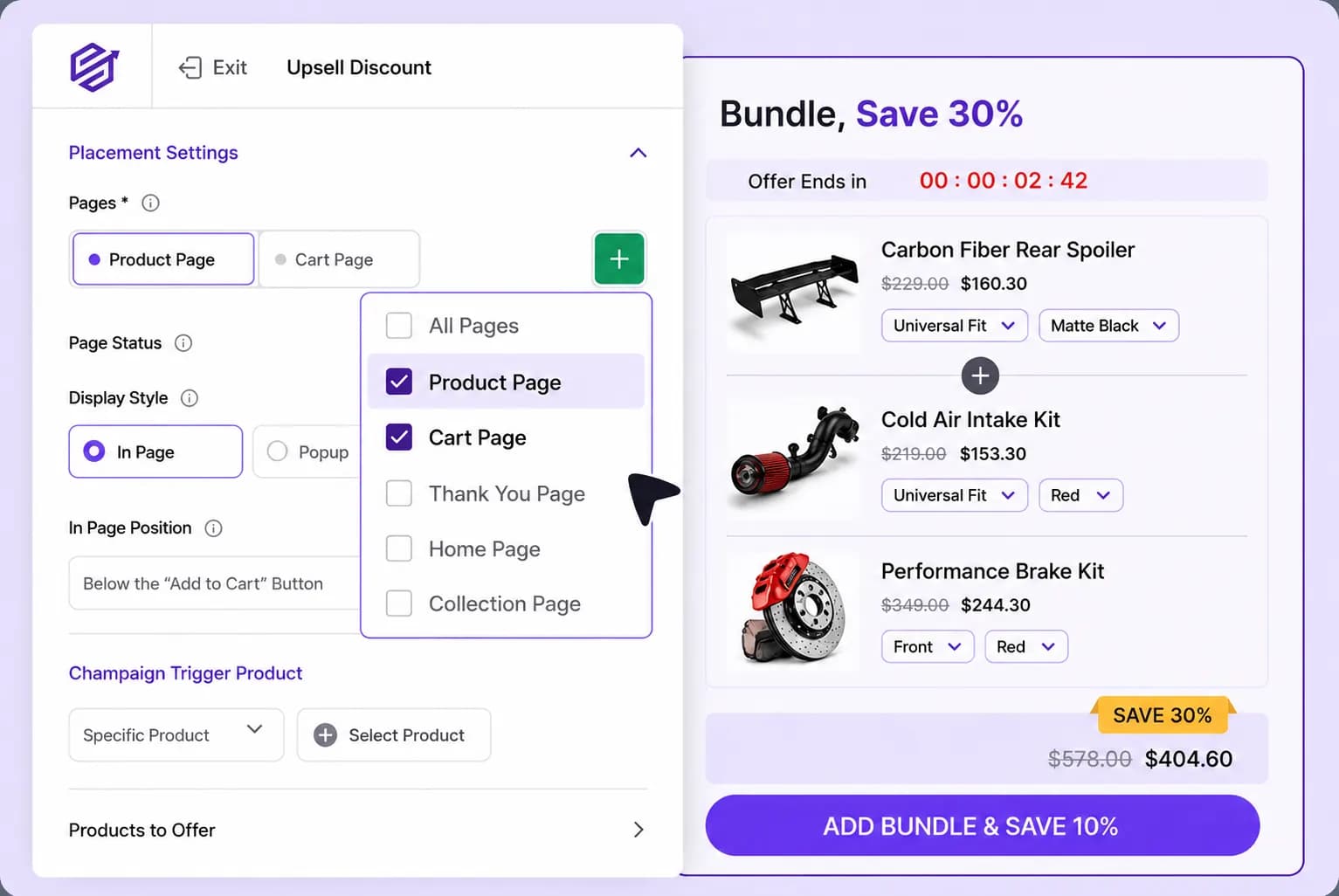
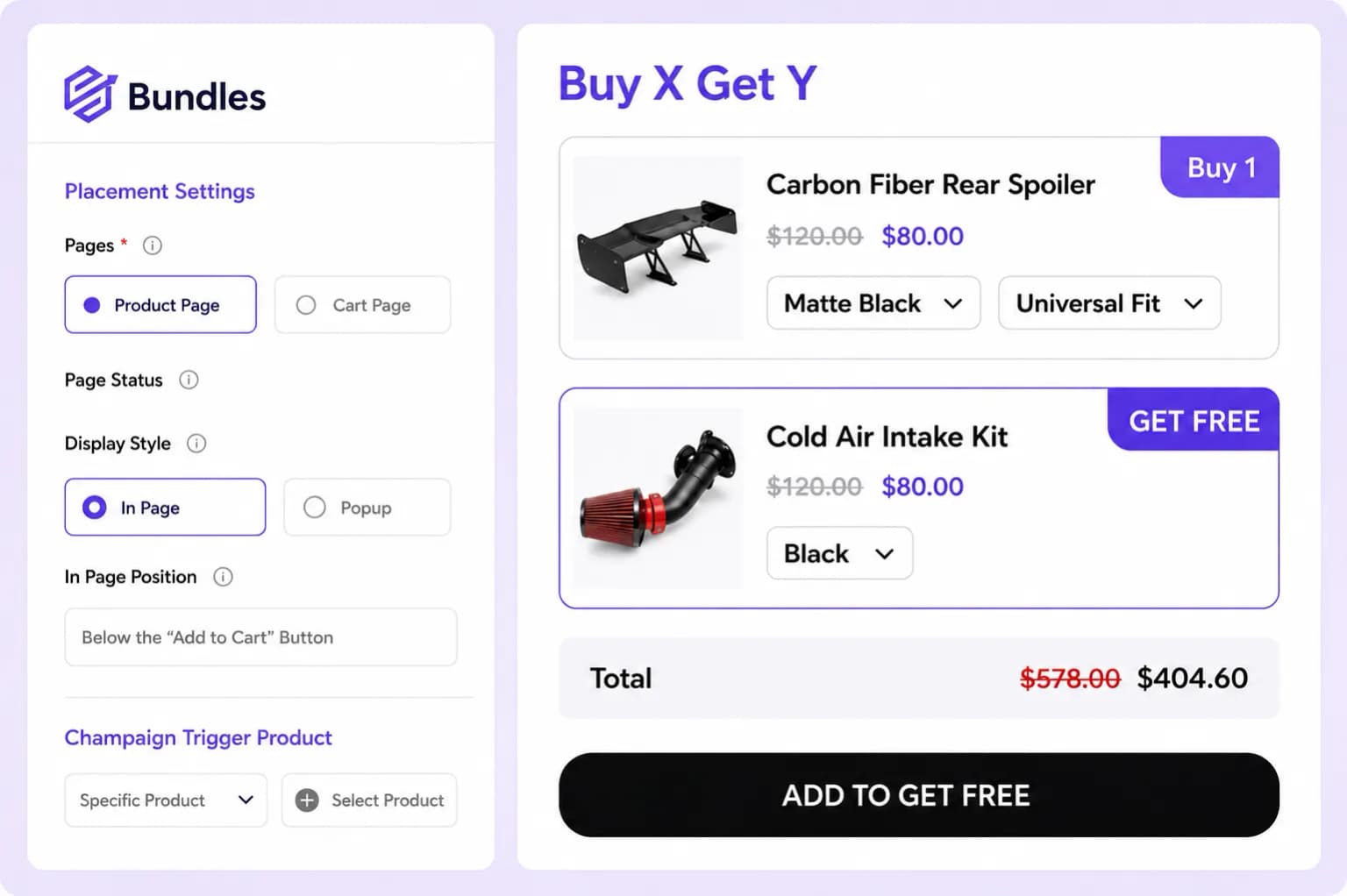
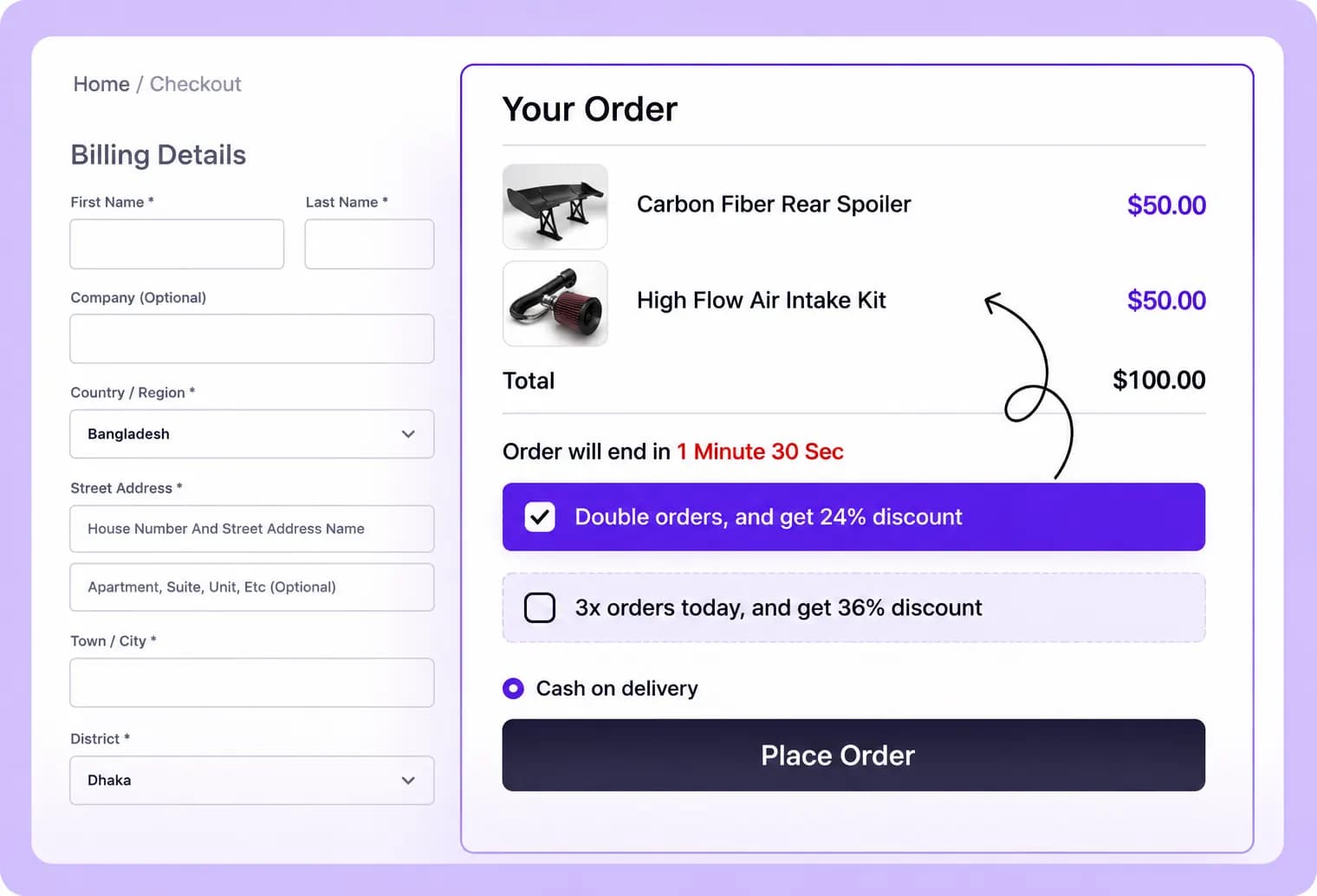
See Preview & styling.
Step 5, Save and publish
- Click Save as Draft to store your work without going live.
- When ready, click Publish to activate the campaign on your storefront (within its schedule).
Open your live storefront on a trigger product or cart page to confirm the widget appears.
Good first campaigns to try
| Your goal | Campaign type in app |
|---|---|
| Simple sale on selected products | Normal Discount |
| Increase order value | Bundle Discount or Frequently Bought Together |
| Reward larger quantities | Volume / Quantity Discount |
| Reduce shipping friction | Free Shipping or Spending Goal |
| Add urgency | Countdown Timer or Stock Scarcity |
| Encourage repeat orders | Next Order Coupon |
Next steps
- Managing campaigns, search, filter, pause, duplicate
- Placements & display, where widgets appear
- Dashboard, track performance after launch