
Frequently Bought Together
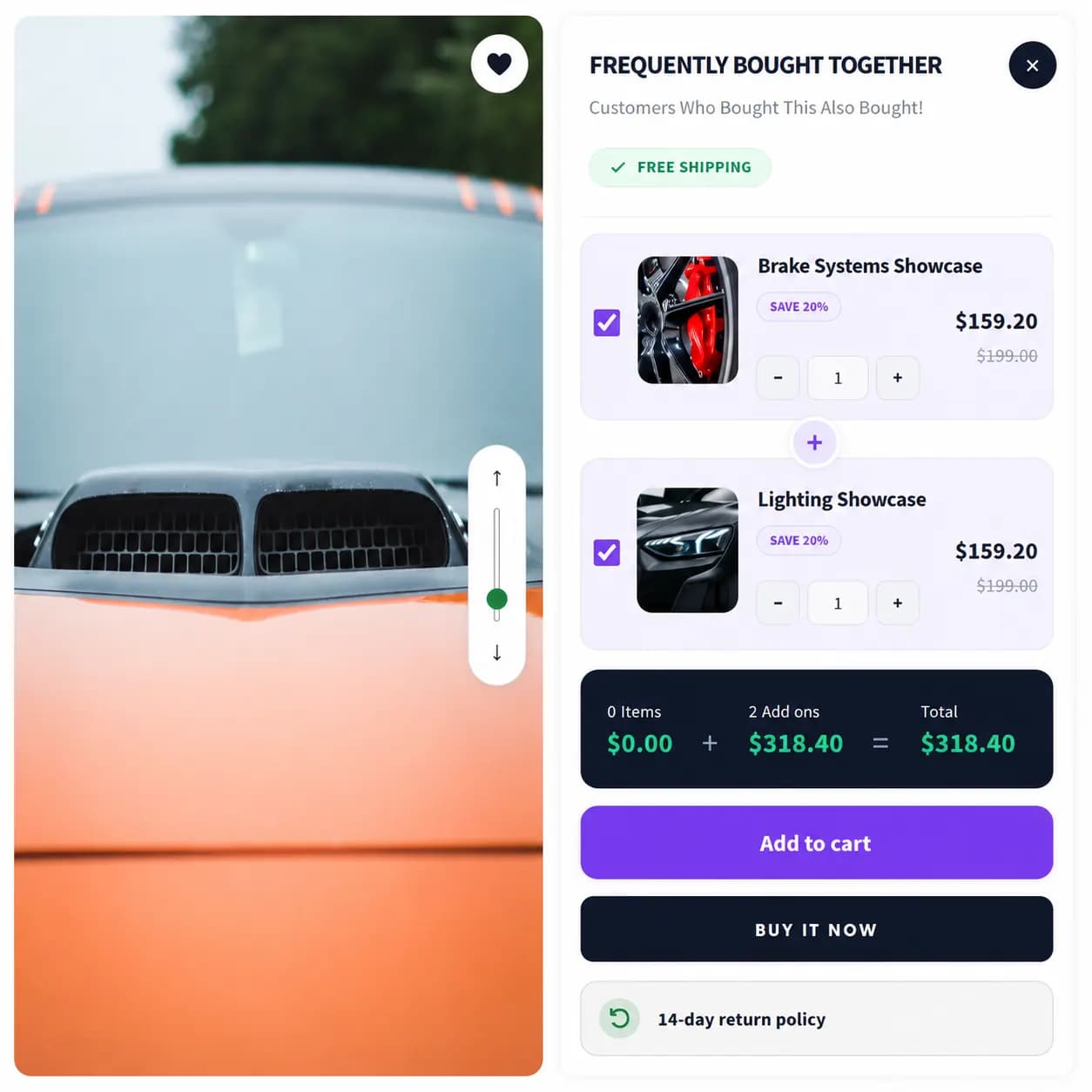
In the app: Frequently Bought Together. Show related products shoppers can add together with one action.
When to use it
- Accessory attach rate (phone + case)
- Cross-sell on product pages
- Cart-page “complete the look” upsells
Create a campaign
- In Shopify Admin, open Apps → BundleWise → Campaigns → Create Campaign
- Choose Frequently Bought Together → Create the Campaign
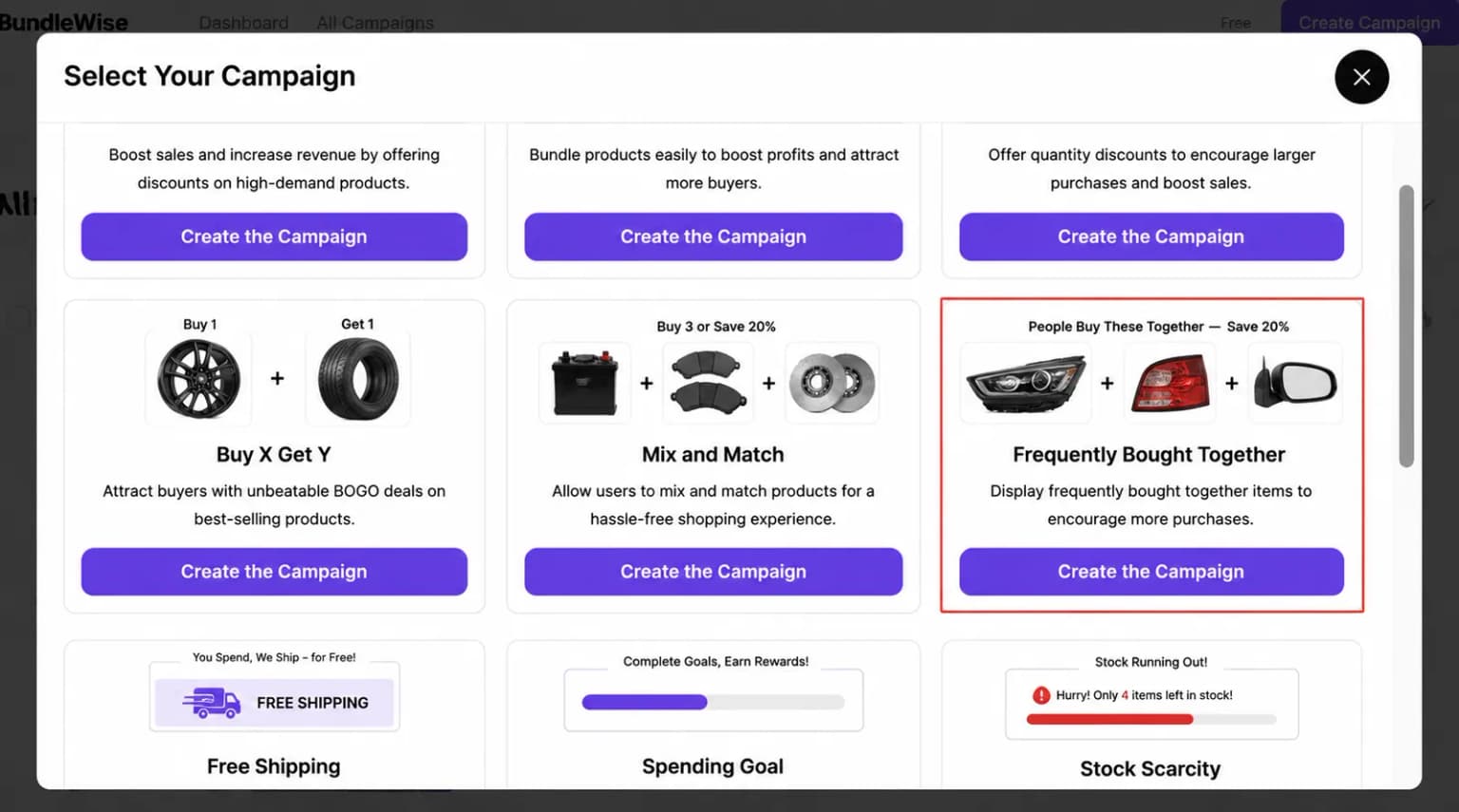
Initial options
Configure the basics so the campaign is easy to find and placed correctly.
Campaign name
Internal label in the campaigns list (not always shown to shoppers). Use a unique name when you run multiple FBT offers.
Shortcode
Choose None (Select if using shortcode) when a developer embeds the widget manually with a shortcode. BundleWise can still apply the discount at checkout when cart rules match. See Placements & display.
Pages
Enable Product page and/or Cart page. Toggle Page Status per tab.
| Page | Behavior |
|---|---|
| Product page | Shows related items when shoppers view a matching trigger product |
| Cart page | Surfaces cross-sells when qualifying products are in the cart |
FBT does not expose Checkout or Thank You tabs in the editor. Optional checkout UI blocks apply to Normal Discount and Bundle Discount only.
Display mode
On each enabled page, choose how shoppers see the offer:
| Mode | Behavior |
|---|---|
| In Page | Embed in the theme at a chosen in-page position |
| Pop-up | Overlay with animation and optional appearance delay |
| Floating | Fixed panel on a screen edge with optional delay |
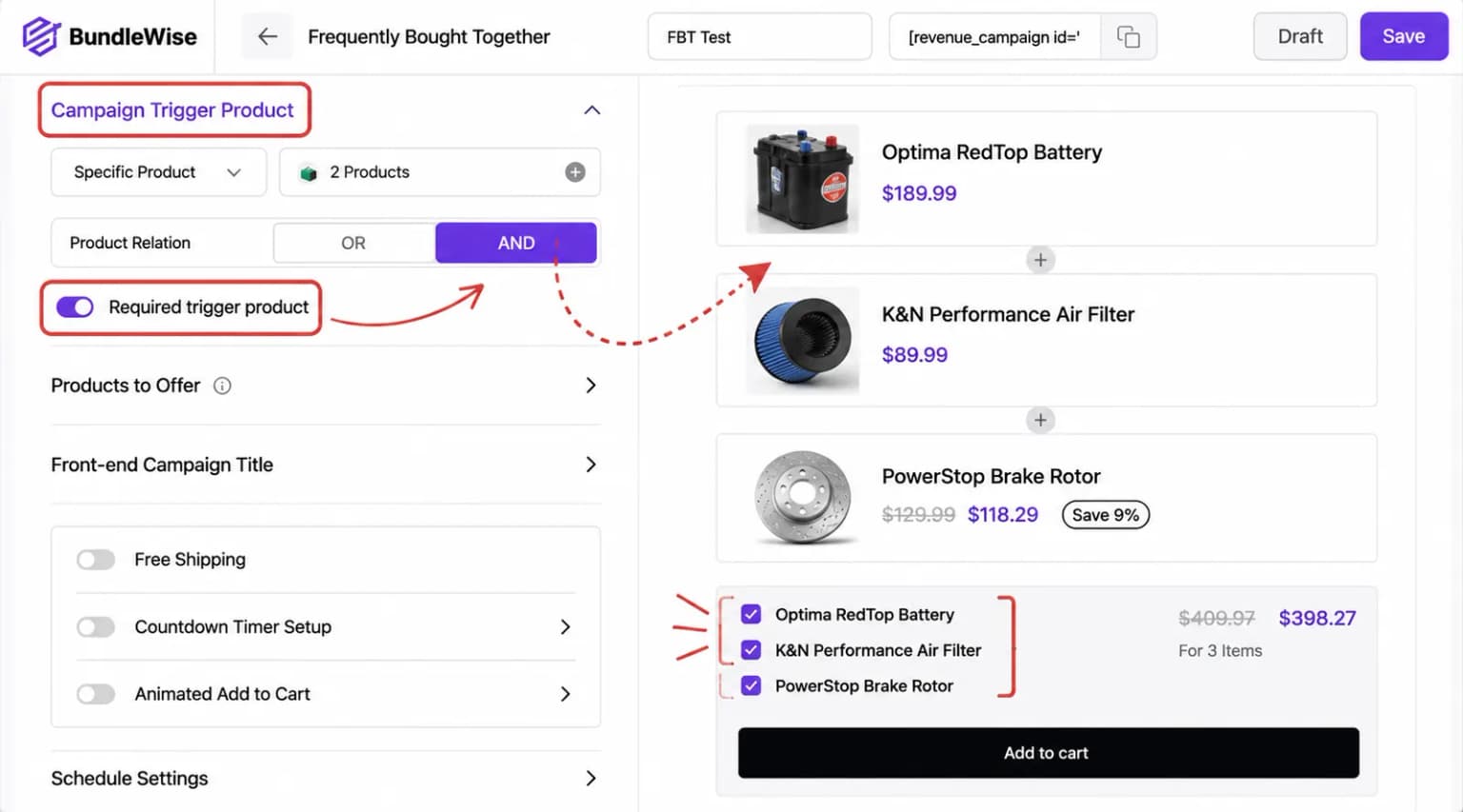
Campaign trigger product
Select the main products that activate the offer.
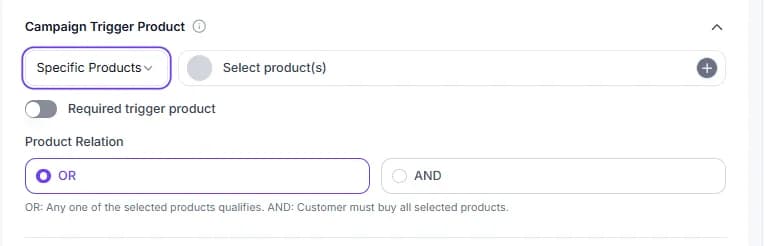
Click Select an option and choose a scope:
- All products, offer related items store-wide (with optional exclusions)
- Specific product, hand-pick trigger products for targeted cross-sells
- Specific category, apply to entire collections, excluding individual products if needed
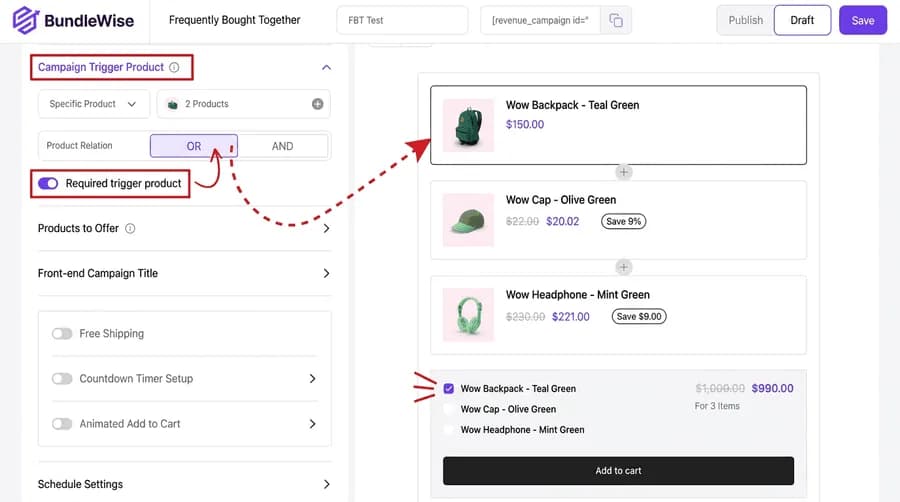
Required trigger and AND / OR rules
- Enable Required Trigger Product makes the main product mandatory before related-product discounts apply
- OR relation, only the main product from the current page needs to be in the cart to unlock the offer
- AND relation, every configured main product must be added before related products receive the discount
Complementary products (Products promotion)
Select related products and set a discount for each.
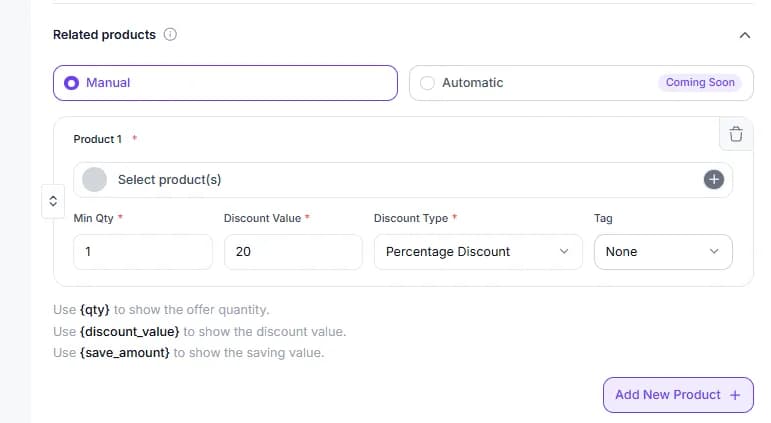
- Use Manual mode to pick related products (Automatic recommendations are marked Coming Soon in the app)
- Under the offer section, search and select related products
- Set the minimum quantity required to unlock each offer line
- Enter the discount value and pick a discount type
- Click Add New Offer Product to include more items with their own discounts
- Use Tags to label entries (for example Most Popular), drag to reorder, or delete with the trash icon
Discount types
| Type | Behavior |
|---|---|
| Percentage Discount | Reduce price by a percentage of the original |
| Fixed Discount | Subtract a fixed amount from the price |
| No Discount | Show the product at its base price |
| Fixed Amount | Set a fixed price amount for the offer line |
| Free | Offer the related product at no cost |
Setup checklist
- Create Campaign → Frequently Bought Together
- Set trigger products (and optional AND/OR / required trigger rules)
- Add companion products; set quantity, discount type, and tags
- Pages & Display, Product and/or Cart; In Page, Pop-up, or Floating
- Optional Schedule, FOMO toggles (free shipping, countdown, animated add to cart), and additional cart settings
- Publish
Storefront behavior
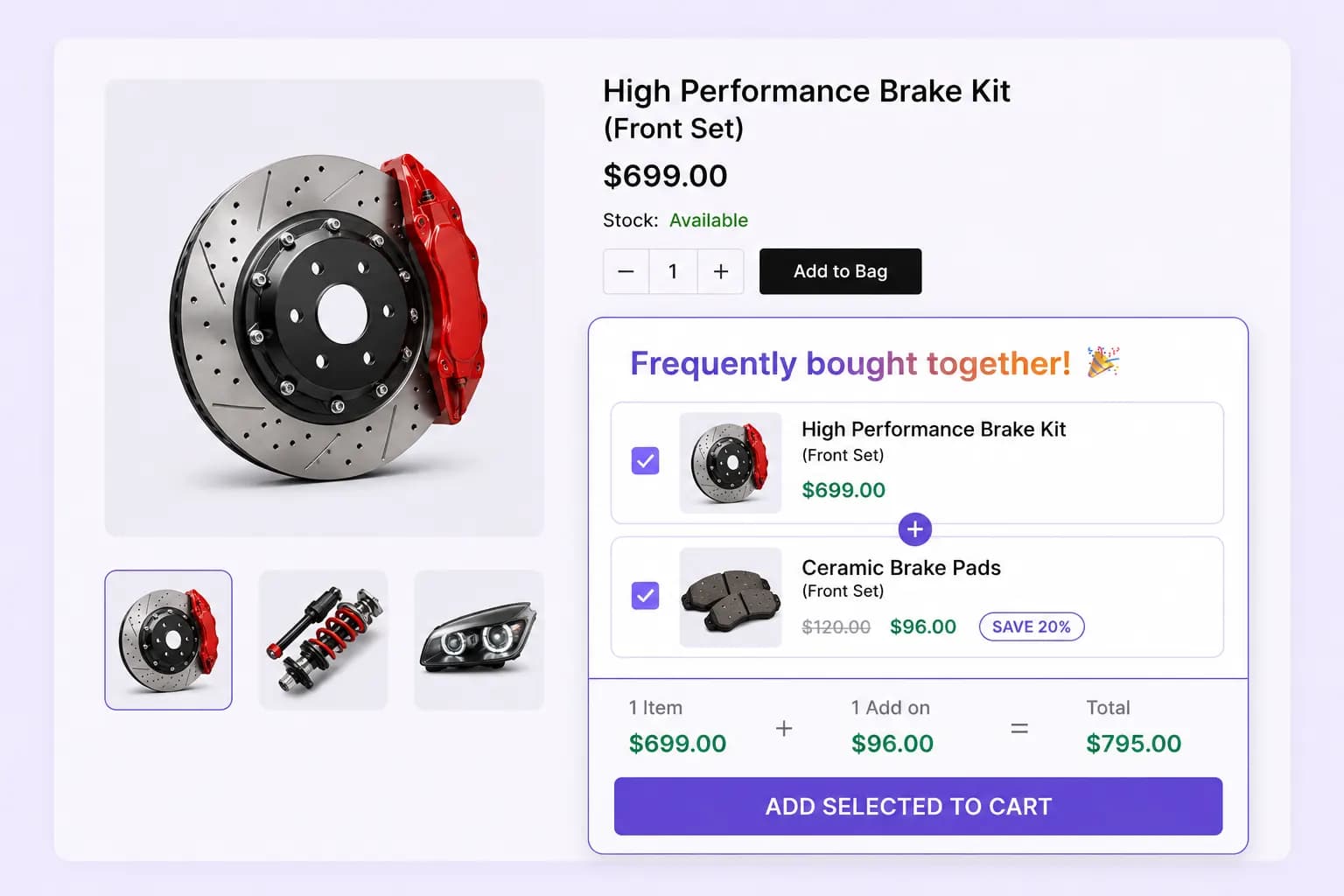
- Checkbox or card layout with total savings
- One CTA adds selected lines to cart
- Discount applies at checkout via Shopify product discount Functions when rules match
- Default priority 100 (bundle-style tier)
Placements
Product page and Cart page only.