
Managing campaigns
The Campaigns page lists every campaign in your shop. In Shopify Admin, open Apps → BundleWise → Campaigns, or click All Campaigns in the app navbar.
What each column shows
| Column | Meaning |
|---|---|
| Campaign Name | Internal name, click the row to open the editor |
| Status | Current state (see below) |
| Triggers | Which products activate the campaign (all products or a selected set) |
| Add to cart | How often shoppers added items via this campaign (analytics) |
| Conversion | Conversion rate tied to campaign interactions |
| Revenue | Revenue attributed where available (may show — when not yet attributed per campaign) |
| Action | Row menu, duplicate, pause, resume, delete |
Search & filters
- Search, filter by campaign name.
- Filter (single dropdown), combine campaign type (e.g. Normal Discount, Free Shipping) with display style (In Page, Pop up, Before Single Product), or choose All Types.
- Status, All Status, Active, Upcoming, Expired, Paused, Draft, or Published (all non-draft campaigns regardless of schedule).
Pagination: 10, 25, or 50 rows per page. Sort by name, status, add to cart, conversion, or revenue.
Status labels explained
| Badge in list | Meaning |
|---|---|
| Draft | Saved in the app but not live on the storefront |
| Active | Published and currently within its schedule |
| Upcoming | Published but start date is in the future |
| Expired | Published but end date has passed |
| Paused | Manually paused from the row menu, hidden on the storefront until resumed |
To publish or save a draft, use the buttons in the campaign editor (Save as Draft and Publish). To pause without deleting, use the row Action menu.
Row actions
| Action | How |
|---|---|
| Edit | Click the campaign row |
| Duplicate | Action menu → Duplicate |
| Pause / Resume | Action menu (pauses live campaigns without deleting settings) |
| Delete | Action menu → Delete, confirm in the dialog |
| Bulk delete | Select checkboxes → delete selected |
Create a new campaign
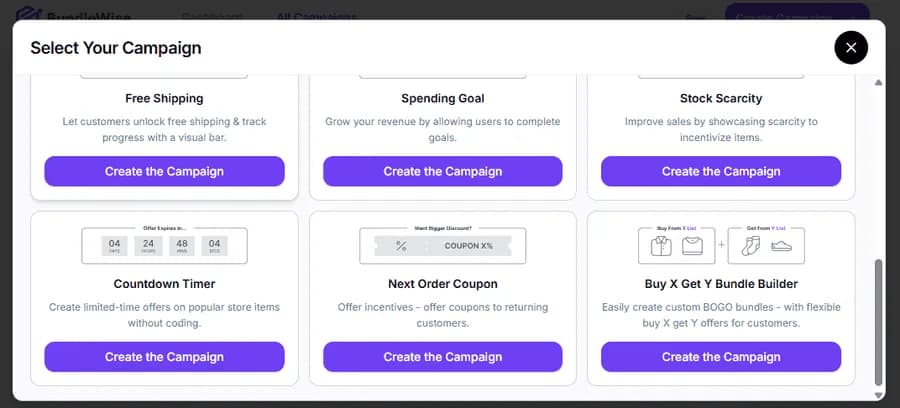
Click Create Campaign in the navbar. In the Select Your Campaign modal, pick a type and click Create the Campaign. You are taken to the editor for that type.
Free plan limits
On the Free plan you can save up to 3 campaigns total. You can also have at most 3 non-draft campaigns (Active, Upcoming, Expired, or Paused count toward this publish limit). Upgrade on Billing & plans for unlimited campaigns.