
Campaign settings
Settings shared across most BundleWise campaign types. Each type adds its own offer section (tiers, bundles, goals, etc.), see that type’s guide for details.
Campaign heading
- Campaign name, internal label in the campaign list (not always shown to shoppers).
- Title / subtitle, customer-facing text on the widget (labels vary slightly by type).
Save, publish, and pause
| Action | Where | Result |
|---|---|---|
| Save as Draft | Editor header | Saves settings; campaign stays off the storefront |
| Publish | Editor header | Makes the campaign live when schedule allows |
| Pause / Resume | Campaigns list → Action menu | Hides or restores a published campaign without deleting it |
List badges (Active, Upcoming, Expired, Draft, Paused) reflect schedule and pause state, see Managing campaigns.
Campaign priority
When multiple campaigns could apply, higher priority wins. Default tiers (you can change them in Additional settings):
| Priority | Campaign types (default) |
|---|---|
| 100 | Bundle Discount, Frequently Bought Together, Buy X Get Y Bundle |
| 50 | Normal Discount, Volume / Quantity Discount, Mix and Match, Buy X Get Y, Free Shipping, Spending Goal |
| 40 | Stock Scarcity, Countdown Timer, Next Order Coupon |
When two discounts apply to the same cart line
In Additional settings, choose how conflicts resolve:
| Mode | Behavior |
|---|---|
| Best deal (higher savings wins first) | Default, the offer with greater estimated savings applies first |
| Priority first (campaign priority wins first) | Higher Campaign Priority number wins even if another offer would save more |
For store-wide conflict policy, the choice from your most recently updated published campaign is used for the whole shop.
Trigger products
Controls when a campaign can run:
- All products, eligible on any matching page placement.
- Selected products, only runs on products you pick in the Shopify product picker.
Some types also define offer products separately (for example BOGO “get” items).
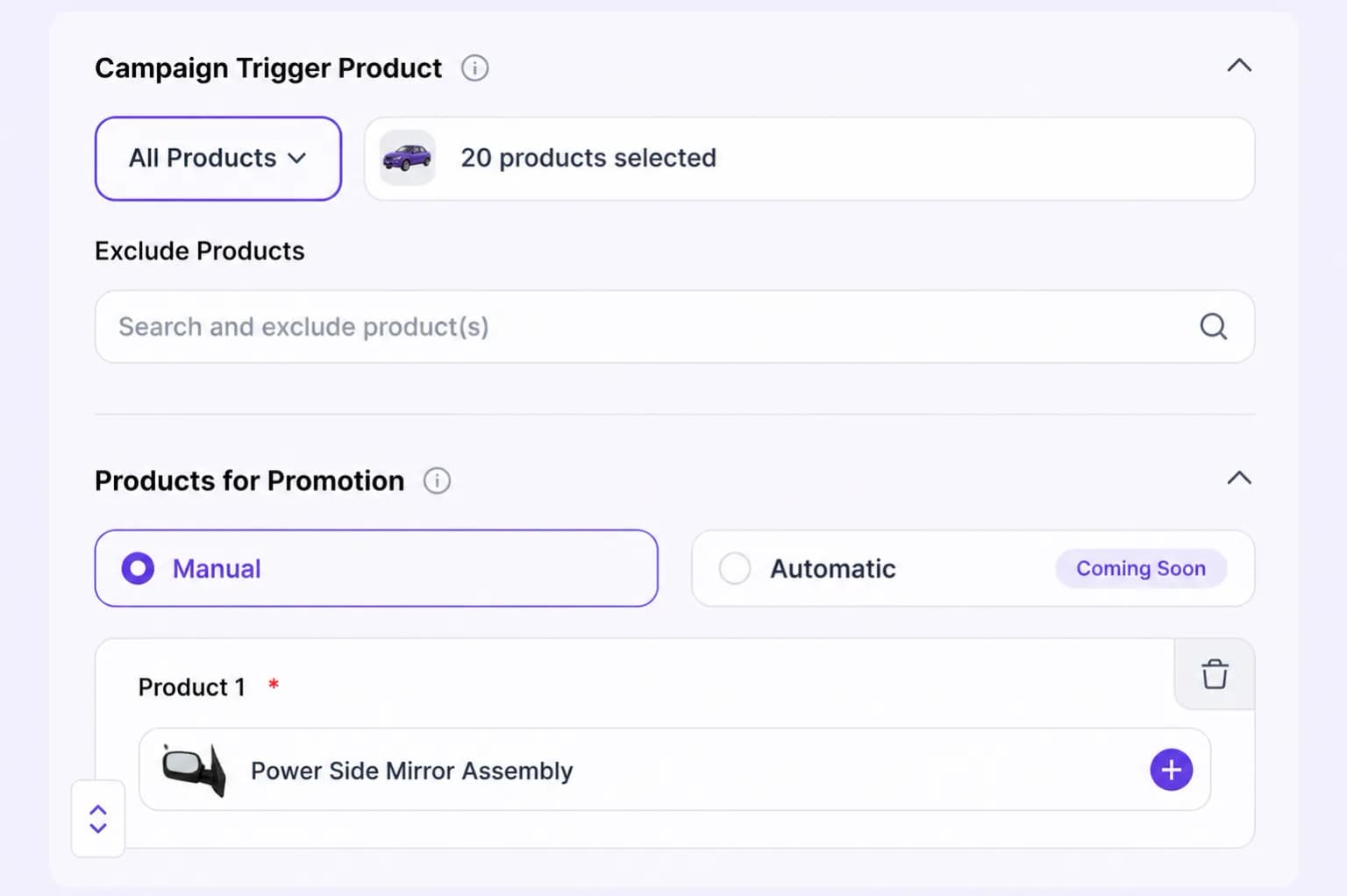
If the same product appears in overlapping offer tiers, the editor may show a conflict warning, adjust triggers or priorities to avoid clashes.
Schedule
Optional start and end date/time. Outside that window, a published campaign shows as Upcoming or Expired in the list and does not appear on the storefront.
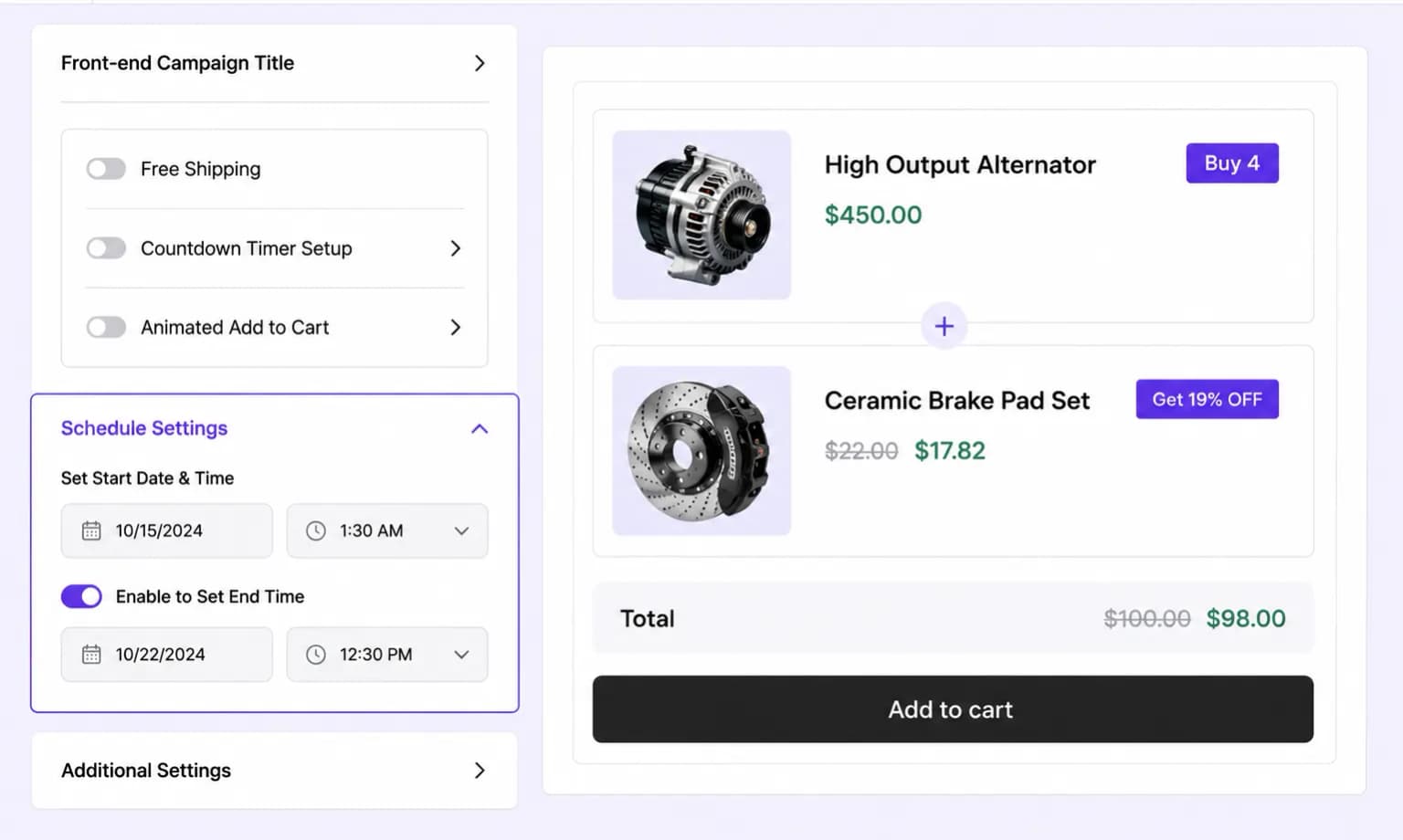
Leave dates empty for an always-on campaign.
Pages & display
Configured under Pages & Display in each editor:
- Page tabs, Product, Cart, Shop, Entire site, or Email (only tabs your campaign type supports).
- Display mode, In Page, Pop-up, Floating, or Drawer (see Placements & display).
- In-page position, where the block sits on that page (for example before add to cart).
Additional settings
Often includes custom button labels, countdown text, upsell products, minimum purchase rules, and campaign priority.
Campaign Behavior (where available): tag the offer as Cross-sell, Upsell, or Down-sell for your own organization in the editor.
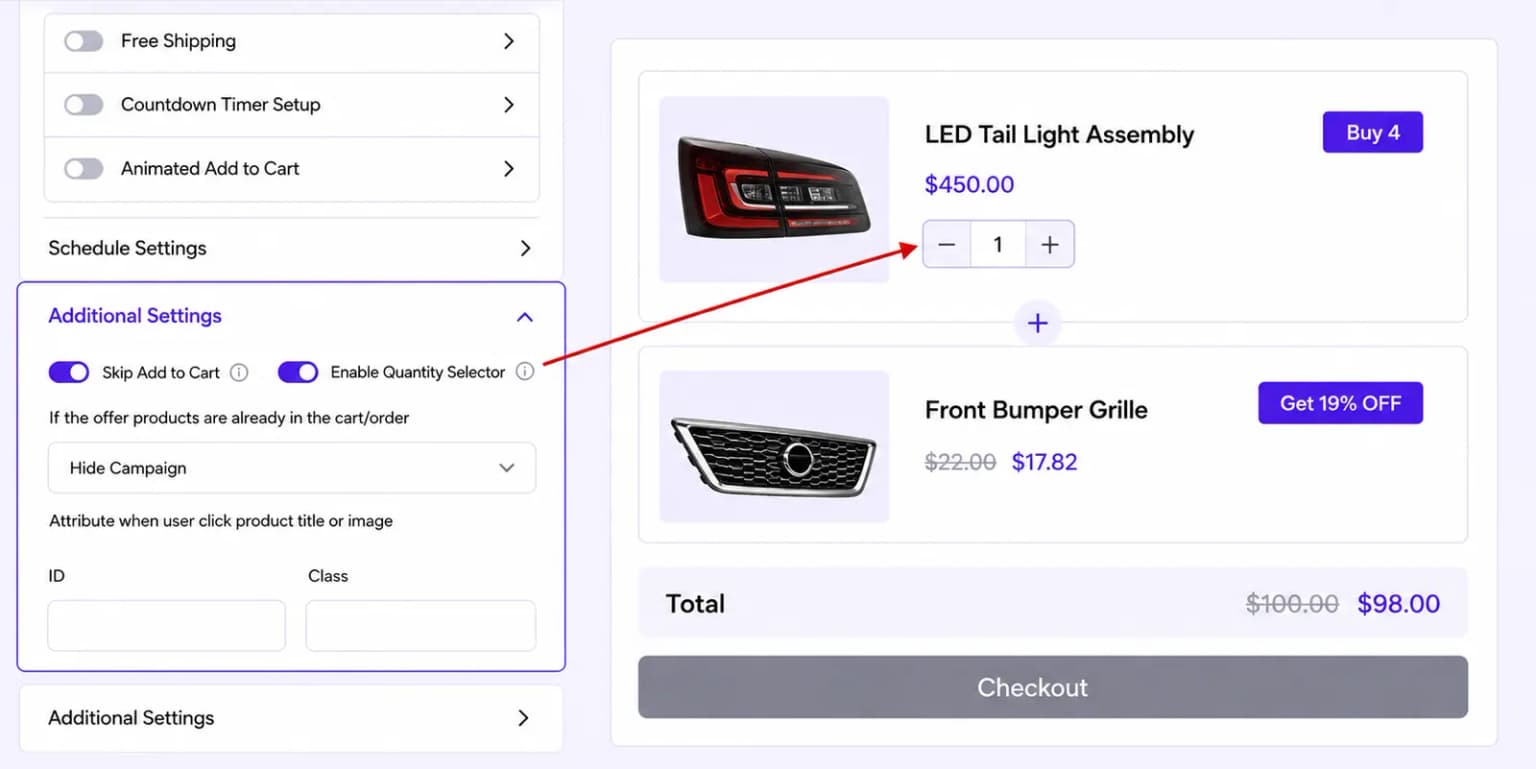
Cart-related toggles commonly include:
- Skip Add to Cart — send shoppers straight to checkout
- Enable Quantity Selector — adjust qty inside the widget
- If offer products in cart — Do Nothing / Hide Campaign / Hide Product
- Animated Add to Cart — Loop or On Hover; styles such as Wobble, Shake, Zoom, Pulse, Bounce, Swing, Tada
Unsaved changes
Leaving the editor with unsaved changes triggers a warning. Save as draft or publish before navigating away.