
Placements & display
Control where shoppers see a campaign and how the widget appears. Settings are under Pages & Display in each campaign editor (tabs change based on what that campaign type supports).
Which pages each campaign type supports
Not every campaign can appear on every page. Use this table when planning your offers:
| Campaign type (in app) | Product page | Cart page | Shop page | Entire site | |
|---|---|---|---|---|---|
| Normal Discount | ✓ | ✓ | , | , | , |
| Bundle Discount | ✓ | ✓ | , | , | , |
| Volume / Quantity Discount | ✓ | ✓ | , | , | , |
| Buy X Get Y | ✓ | ✓ | , | , | , |
| Mix and Match | ✓ | ✓ | , | , | , |
| Frequently Bought Together | ✓ | ✓ | , | , | , |
| Buy X Get Y Bundle Builder | ✓ | ✓ | , | , | , |
| Free Shipping | ✓ | ✓ | , | ✓ | , |
| Spending Goal | ✓ | ✓ | , | ✓ | , |
| Stock Scarcity | ✓ | ✓ | , | , | , |
| Countdown Timer | ✓ | ✓ | ✓ | ✓ | , |
| Next Order Coupon | , | , | , | , | ✓ |
Shop page means collection and catalog grids (for example, a countdown on each product card). Entire site adds a bar or drawer across eligible storefront pages.
Display modes
How the widget appears on a selected page:
| Mode | What shoppers see | Available on |
|---|---|---|
| In Page | Widget embedded in the theme at a chosen position | Most discount and bundle types |
| Pop-up | Overlay modal after a delay or animation | Most types except Countdown Timer and Stock Scarcity |
| Floating | Fixed panel on the screen edge | Selected types (for example bundles and BOGO) |
| Drawer | Slide-in panel from an edge | Spending Goal only (on Product, Cart, or Entire site tabs) |
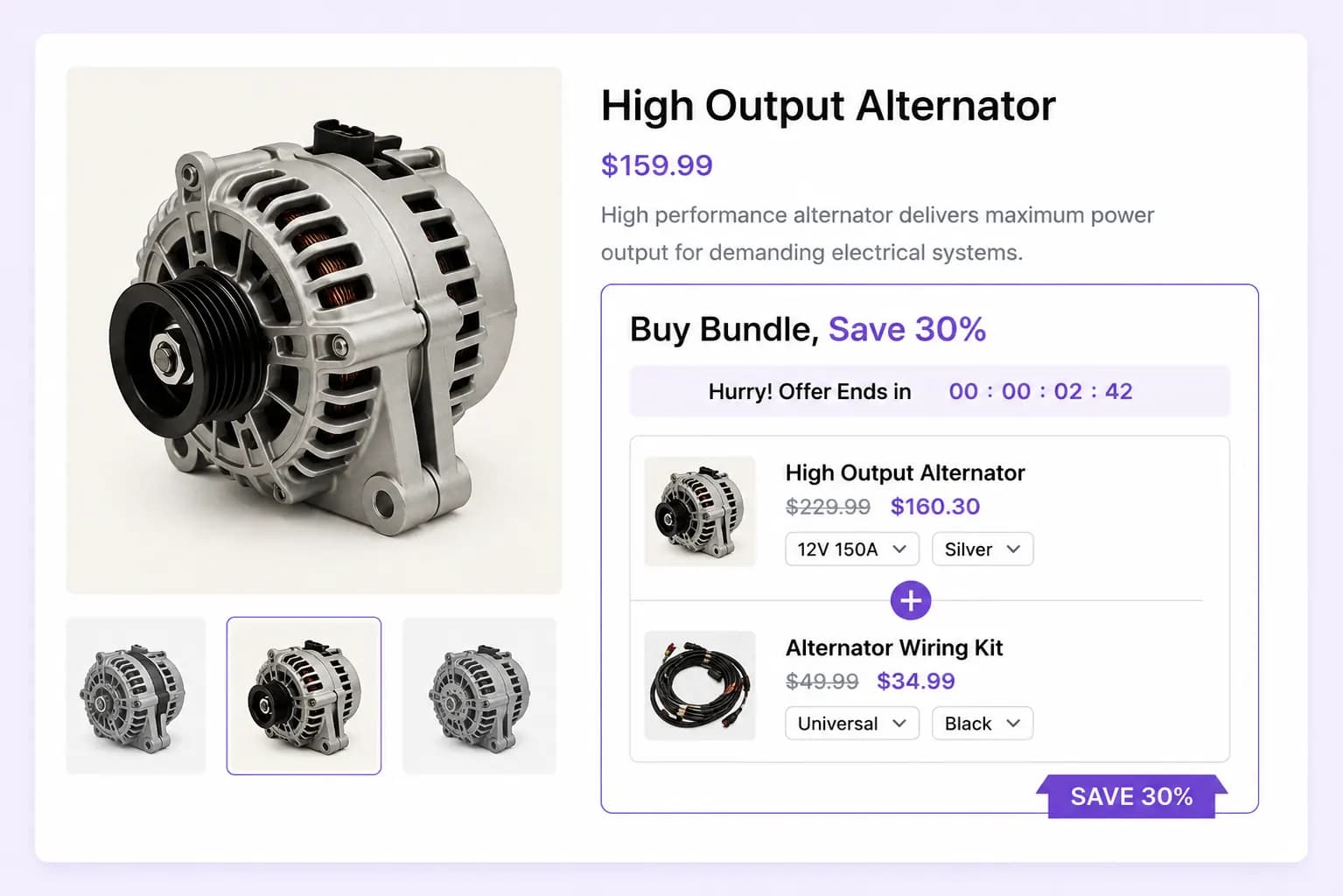
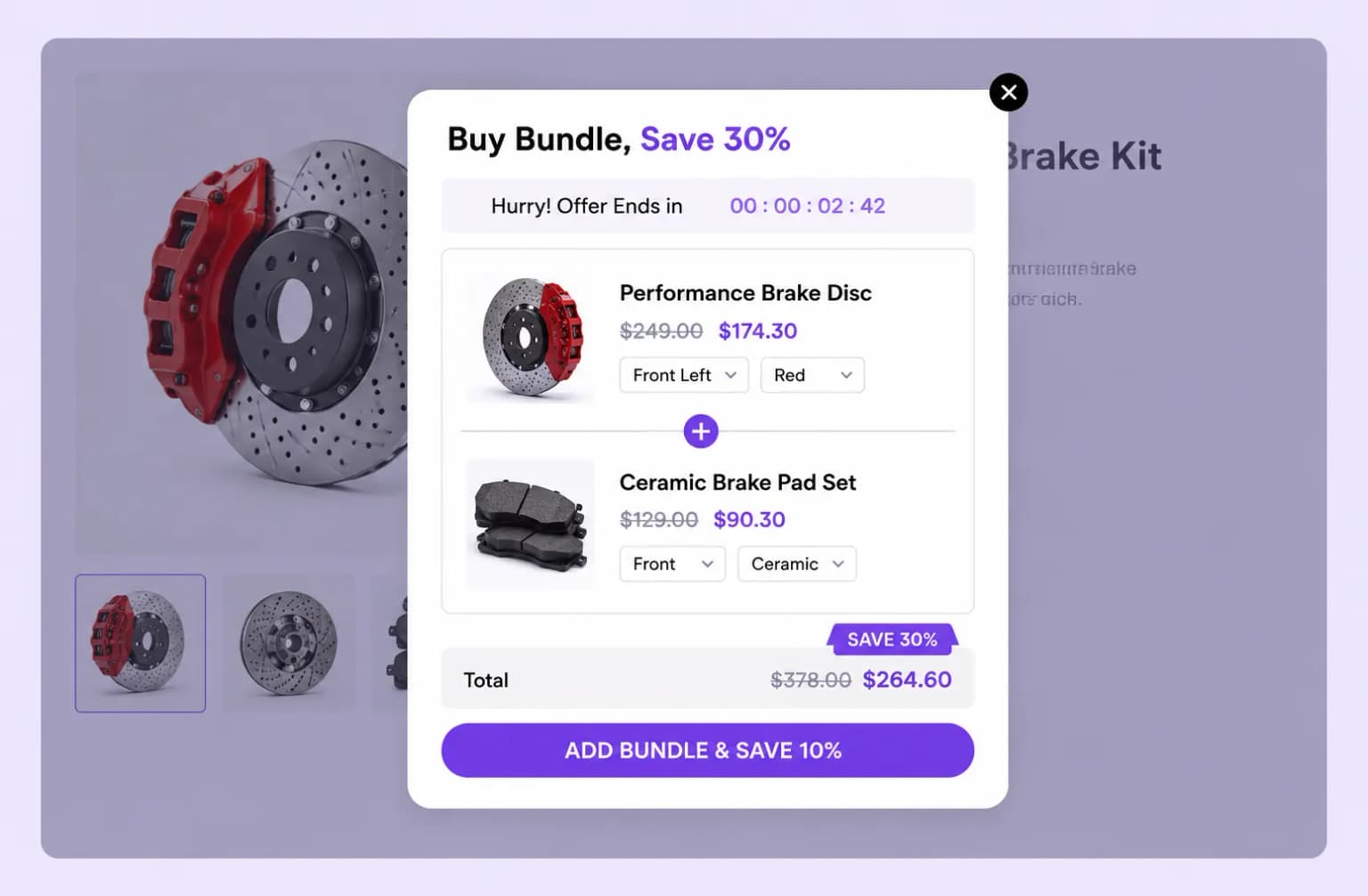
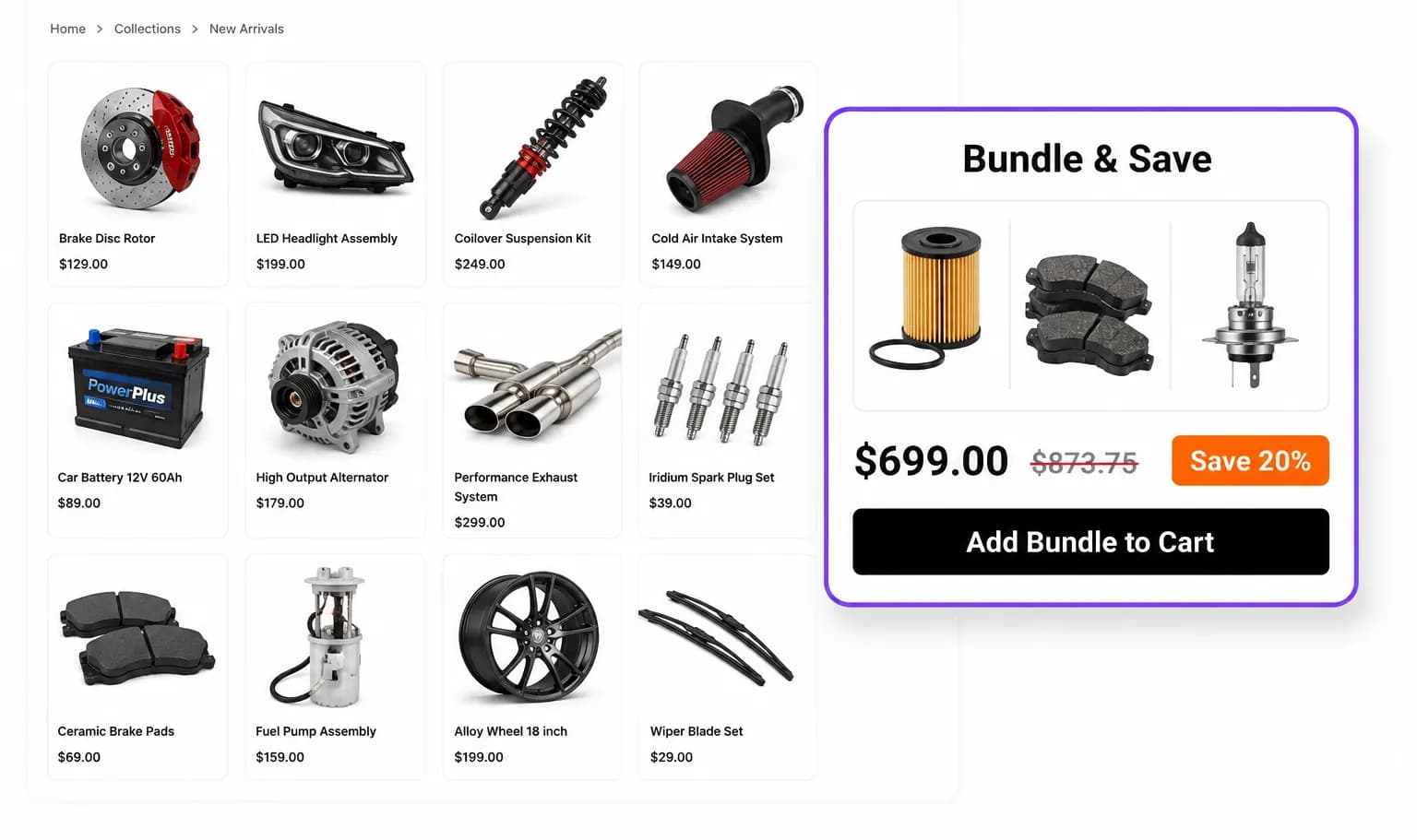
Countdown Timer and Stock Scarcity use In Page only in the editor. You still pick where on the page the block sits.
On the product page, the storefront may force Countdown Timer widgets to In Page even if another mode was saved, use in-page position to control placement.
The campaigns list filter includes Pop up and Before Single Product, those refer to saved display/placement settings, not separate editor modes.
In-page positions
When display mode is In Page, choose where the block sits relative to theme elements. Options vary by page tab (Product, Cart, etc.).
Common product page positions
- Before or after the add to cart button
- Before or after the product summary
- Before or after the full product section
Common cart page positions
- Before or after the cart table or cart totals
- Near proceed to checkout
Entire site (Free Shipping & Spending Goal)
- Top of page or bottom of page (inline bar)
- Spending Goal can also use Drawer on Product, Cart, or Entire site tabs
Stock Scarcity (product page)
- Below product title, below price, or before add to cart
Checkout and Thank You (optional)
BundleWise includes a checkout UI extension for Normal Discount and Bundle Discount campaigns. To show campaign content on checkout or the thank-you page:
- In Shopify Admin, open Settings → Checkout → Customize.
- Add the BundleWise checkout block where you want it.
- Publish a Normal or Bundle campaign with checkout/thank-you placement enabled in its configuration.
Most campaign editors currently expose Product page and Cart page tabs only. Checkout and thank-you are handled through the checkout editor block plus campaign config, contact support if you need help enabling those placements.
Shortcode / manual placement
Choose None (Select if using shortcode) when your theme developer places the widget manually. BundleWise can still apply the discount at checkout even when the widget is embedded by code.