
Installation
Install BundleWise from the Shopify App Store and approve the permissions the app needs to apply discounts and show widgets on your storefront.
Install from the Shopify App Store
- Log in to Shopify Admin.
- Go to Apps and search for BundleWise (by DeveloperLook).
- Click Install and review the permission request.
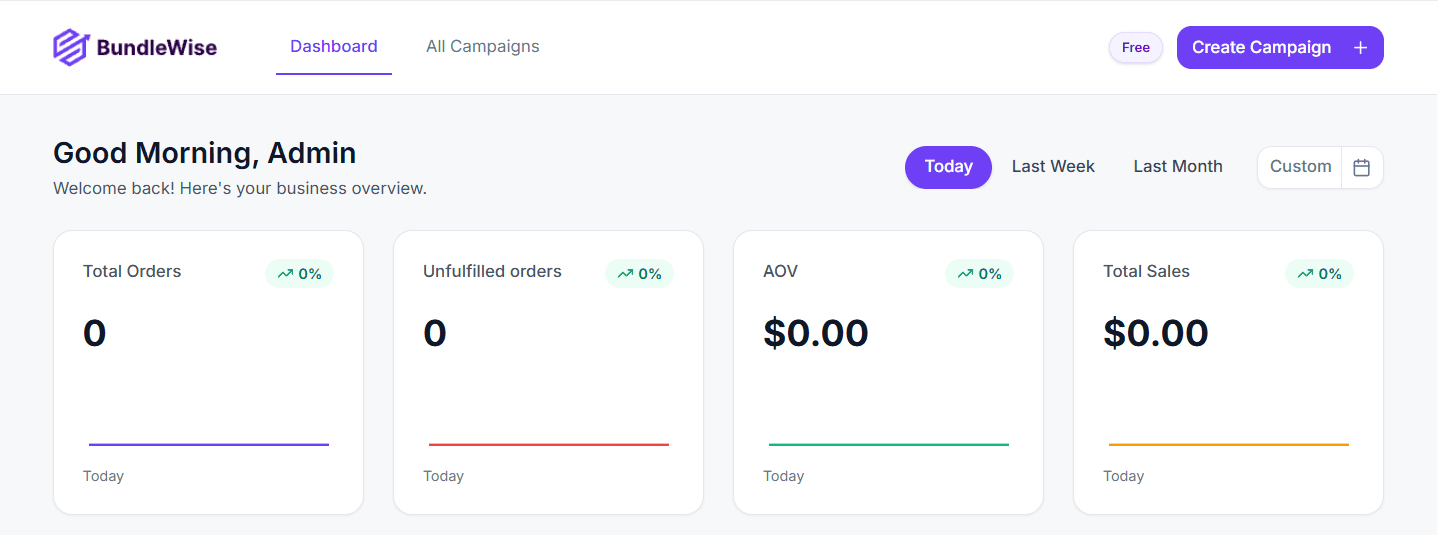
- After approval, you are redirected into BundleWise inside Shopify Admin.
Permissions the app requests
BundleWise uses Shopify API access to:
| Access | Why it is needed |
|---|---|
| Products (read & write) | Select trigger and offer products; sync where needed |
| Discounts (read & write) | Create and update Shopify discounts tied to campaigns |
| Script tags (read & write) | Load the storefront widget script on your theme |
| Orders (read) | Next Order Coupon rewards and dashboard metrics |
| Customers (read) | Customer-related coupon and eligibility rules |
| Metaobject definitions (read & write) | Shopify metaobject setup bundled with the app |
| App proxy | Serve campaign data to the storefront securely |
Verify installation
After install, confirm:
- Dashboard loads without errors.
- Create Campaign opens Select Your Campaign with all twelve types.
- You can Save as Draft on a test campaign and see the preview panel.
- App navigation shows Dashboard, Campaigns, and Billing.
Storefront script
BundleWise registers a script tag on your Online Store when you open the app so published widgets can load on your theme. The app also ships a theme app embed and optional checkout UI blocks for checkout and thank-you pages.
If nothing appears on the storefront:
- Open BundleWise once from Shopify Admin (this retries script registration).
- Confirm the campaign is Active (you clicked Publish; not Draft or Paused) and within its schedule.
- Check that Pages & Display includes the page you are testing (for example Product page).
Next steps
- System requirements
- Quick start guide
- Billing & plans if you plan more than three campaigns