
Stock Scarcity
In the app: Stock Scarcity. Show urgency messages, real inventory, social proof, or rotating copy.
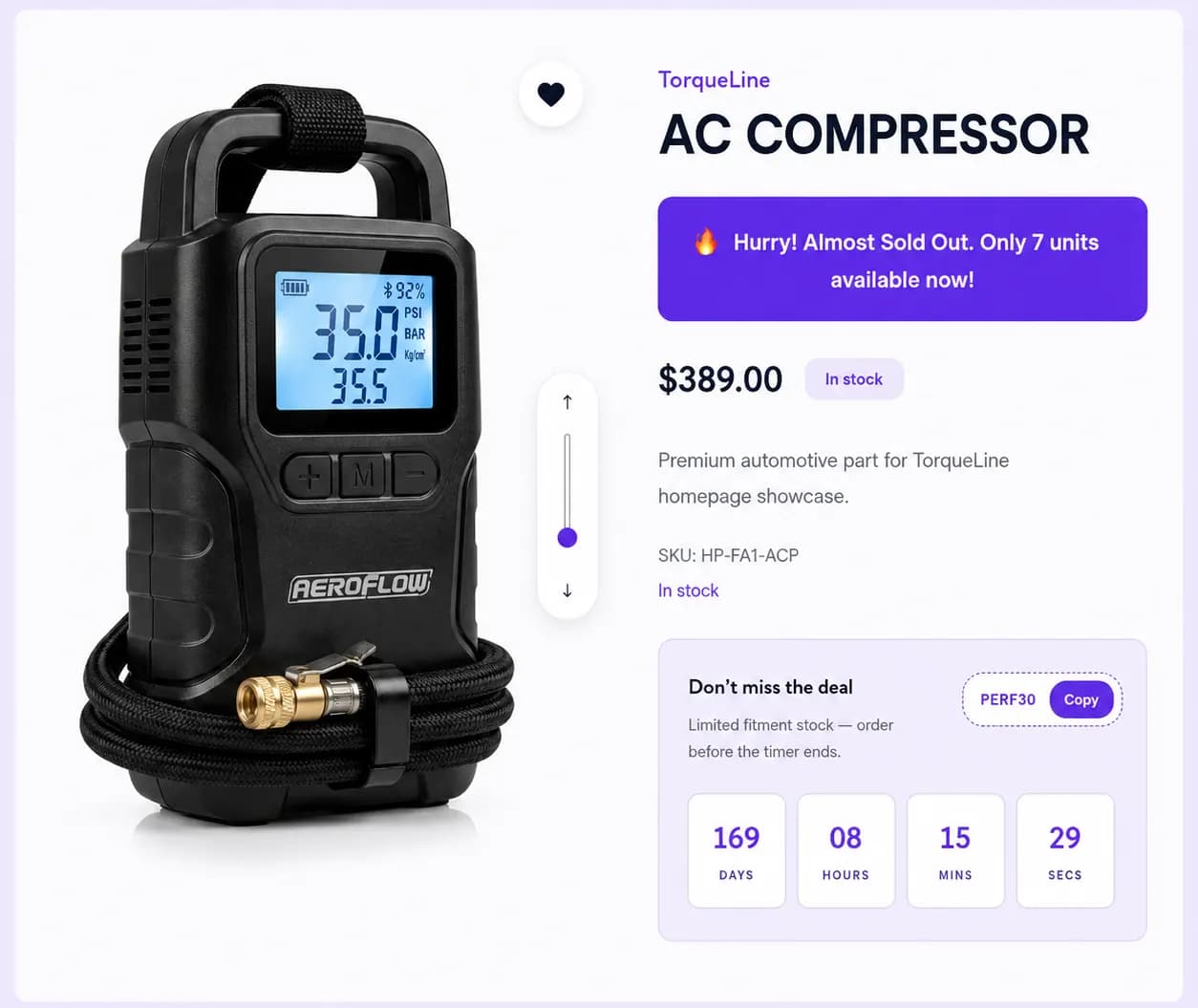
When to use it
- Limited runs and seasonal SKUs
- Social proof (“people viewed this recently”)
- Low-stock nudges near add to cart
Setup
- Create Campaign → Stock Scarcity
- Choose message types:
- Stock number, uses Shopify inventory (e.g. “Only {stock_number} left!”)
- Viewer count, recent view messaging
- Flip messages, rotate multiple lines on a timer
- Optional artificial stock settings, display a custom stock level or bar for marketing (use responsibly; see below)
- Pages & Display, Product and/or Cart; In Page only
- Pick position: below title, below price, or before add to cart
- Publish
Storefront behavior
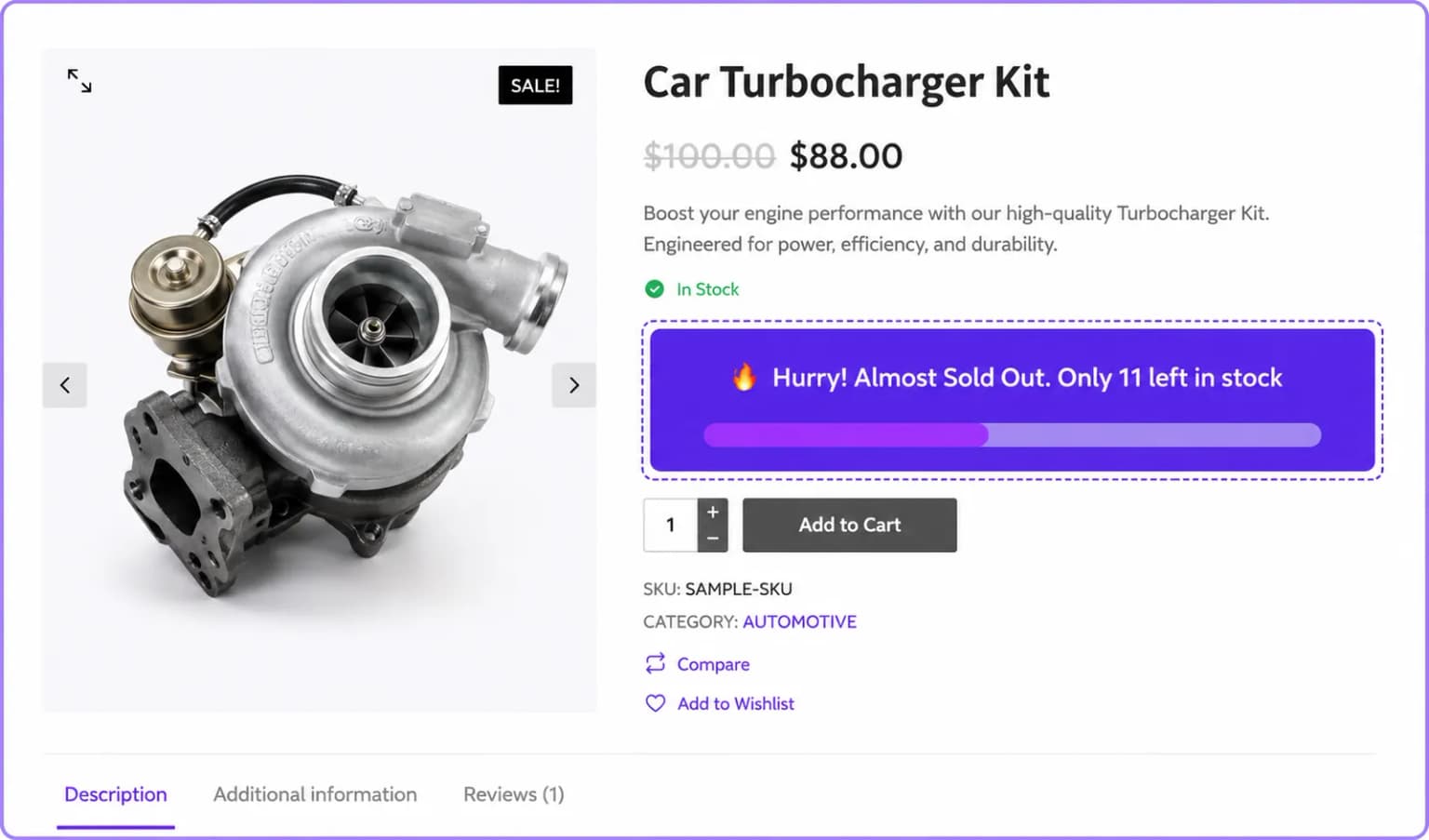
- Real stock messages pull from Shopify inventory
- Flip messages cycle on an interval you configure
Placements
Product page and Cart page only. Display mode is In Page only (no pop-up or floating).
This type is a storefront widget only, it does not create a checkout product discount.
Artificial stock & compliance
The editor includes optional fake / artificial stock fields for displayed counts and urgency copy. Use accurate inventory when showing real stock. Misleading scarcity can harm trust and may violate consumer rules in your market, prefer real inventory mode when possible.
Related types
- Countdown Timer, time-based urgency